Restoring Email Messages from Archiving Accounts
See "Enabling Archiving Account."
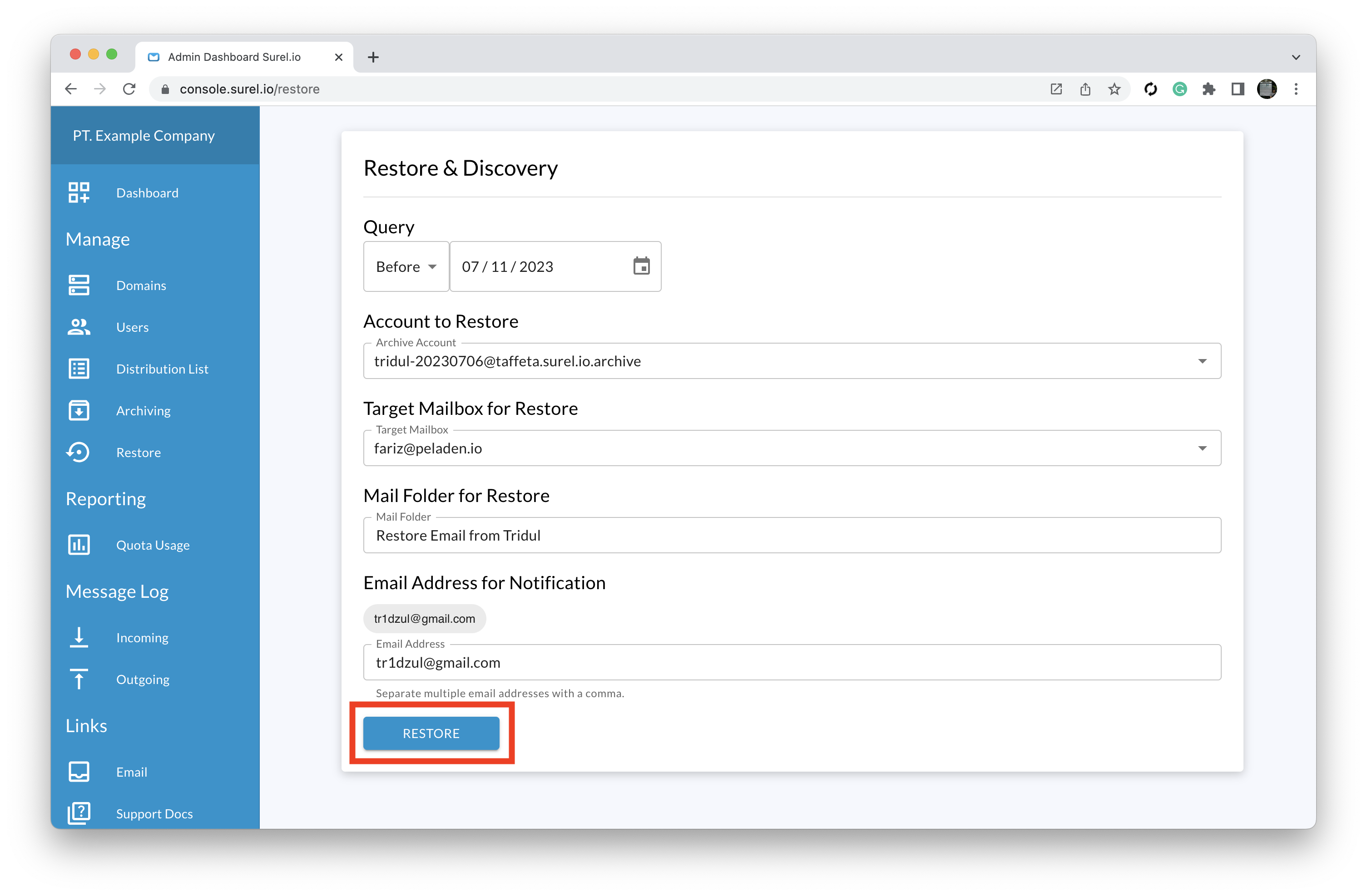
Log in to the console. Click "Restore" on the dashboard menu to see a query option for restoring email messages.

We have several options for restoring your email messages.
- Query, there are three options when you choose a question to restore your email messages.
- Before: all messages available before that time you selected will restore to your account.
- After: all messages available after that time you set will restore to your account.
- On: all messages available when you choose a specific date will restore to your account.
- Account To Restore
- Select your archiving account want to restore using the dropdown menu
- Target Mailbox for Restore
- Select the target account that wants to receive all restored email messages from archiving account.
- Mail Folder for Restore
- All restored email messages will be saved in the new folder; you can change the folder name or use the default name (The default name using Year-Month-Date-Time ).
- Email Address for Notification
- The system will be sent an email notification; you can add multiple email addresses when restoring email messages complete,
- There is no notification when you leave the box empty.
After all options are already provided, click "Restore."

So that you know, you will receive an email notification when the restore is complete.

Check your restored email messages on the target account; you will see a new folder already created.
